
What a Pre-Programmed Controller Means for Your Light Show

EZPlayer programs your controllers for the show you design in EZRGB. It uses your layout to configure the controllers for your lights and props. When you add pieces or change the layout, EZPlayer can reconfigure the controllers to fit the updated show. You mount the equipment, follow the connection guidance, sync through the cloud and test playback.
That difference matters if you are moving from static incandescent or LED string lights to animated lighting. A plain string only turns on. An animated display has to know which pixel sits where, which song is playing and which controller port feeds which prop. This article explains what “pre-programmed” covers, what stays on your to-do list and how to confirm everything matches before the first show.
What pre-programmed means in animated lighting
In an animated display, a controller sends data to individually addressable pixels, so each light can show a different color at the same moment. For an EZRGB kit, EZPlayer programs the controller configuration from your show layout, including the outputs used by your props and their pixel counts.
It does not mean the controller runs one fixed program forever. Your configuration follows your layout, and it can change when you add props or lights later. We also don’t describe it as zero setup. A prepared controller shortens the technical part of the job, but the physical installation is still yours.
The practical gain is that you skip the part that intimidates most beginners: building a controller configuration from scratch and working out which output feeds what. If you want the background on how pixel controllers work, our guide to pixel controllers for homeowners walks from layout to EZSequence to EZPlayer.
How it works with EZRGB: layout, EZSequence, EZPlayer
Three pieces work together.
-
The layout designer. You upload a photo of your home and mark a door or window of known size. The designer scales the photo from that measured box and the dimensions you enter. It then calculates equipment and light counts for rooflines, curves, doors and windows.
-
EZSequence. It generates a sequence that matches your layout, so the effects fit the props you actually have, with no manual mapping.
-
EZPlayer. It controls your show over the website. You schedule songs, sync your purchased EZRGB songs and change what plays. EZPlayer programs and updates the controllers for your show through the cloud workflow and guides your prop connections.
The designer also tracks open ports and flags when your design needs another controller. You can add props or lights at any time and the design updates accordingly. EZPlayer reprograms the controllers for the updated layout as your display grows.
The cloud is required for EZRGB kit downloads, sequences and configuration. We don’t offer a standalone local setup as an alternative kit workflow. EZPlayer needs Wi-Fi to sync. Every controller connects by Ethernet; we don’t make wireless controllers.
For how the music side comes together, see how Christmas lights dance to music with EZRGB.
What arrives in the box, and what doesn’t
A kit includes the listed equipment and extensions: controllers configured by EZPlayer, the lights or props, extension cords and other equipment listed on the product page. Open Christmas Light Show Kit 1 to see exactly what that kit contains.
| Item | Included with a kit? |
|---|---|
| Controller programmed by EZPlayer for your layout | Yes, as listed on the kit page |
| Listed lights or props | Yes |
| Extension cords and listed hardware | Yes |
| Mounting (clips and fasteners for your roofline) | No, mounting is excluded |
| Sequences and matching music | Sold separately |
For any controller specification, such as port counts, read the current controller listing, for example the Baldrick 8 Port Controller page. We don’t quote numbers outside the listing, so the page you buy from is always the one that’s right.
What you still do before the first show
-
Check the kit contents. Compare the equipment with your listing and read the supplied setup guide. Choose mounting hardware for the prop and the surface.
-
Plan the connections. Keep cable routes clear of vehicle and walking paths. Follow the kit instructions for placement and the wired Ethernet network.
-
Register and sync EZPlayer. Use the EZRGB cloud setup to download your layout and purchased content. Follow the prop connection guidance for the layout.
-
Test the installed show. Confirm each intended prop responds, the sequence matches the recording, and the playlist starts and stops on schedule.
Check compatibility before you order
Animated lights come in different kinds, and a controller made for one doesn’t drive the other. A controller built for plain LED strings won’t animate pixel nodes, and a pixel controller won’t animate a plain string. The labels on the controller and on the light string settle the question. Pixel setups also need power supplies and data cabling rated for pixels, plus a sequence built for that pixel layout.
That is the reason we sell lights, props, controllers and sequences that are designed to work together. If you are mixing in lights you already own, an installer’s note on when to use C7 vs C9 lights helps you identify what you have before you decide what to connect. For the comparison with traditional strings, see RGB pixels vs. traditional Christmas lights.
If you already use xLights, you can bring your own layout. Our post on using your xLights layout with EZRGB sequences explains how.

Customizing effects and music without programming
You don’t write code or build effects by hand. The layout you draw in the designer is what EZSequence uses to generate a sequence for your home, and EZPlayer handles playback. Through the website you can schedule songs, change what plays and sync songs you purchased.

Sequences and matching music are sold separately, so choose your songs from the RGB sequences page. If you want to understand the simpler end of the range first, pre-programmed lighting effects for holiday displays and how simple lighting controllers work cover it.
What to check if a prop stays dark
Check whether the sequence is meant to use that prop and whether EZPlayer has finished syncing. Compare the physical connection with the layout guidance. Follow the supplied instructions to disconnect power before handling a cable or connector. Leave wet or damaged electrical equipment out of service and contact support for product-specific guidance. Flicker or interrupted playback can have several causes, so record what happens before changing equipment.
Preview your display and get started
You can design your display before you buy anything. Upload a photo, place props and see the equipment the designer calculates for your roofline, doors and windows. When you’re ready, browse plug and play kits, individual plug and play props or RGB lights.
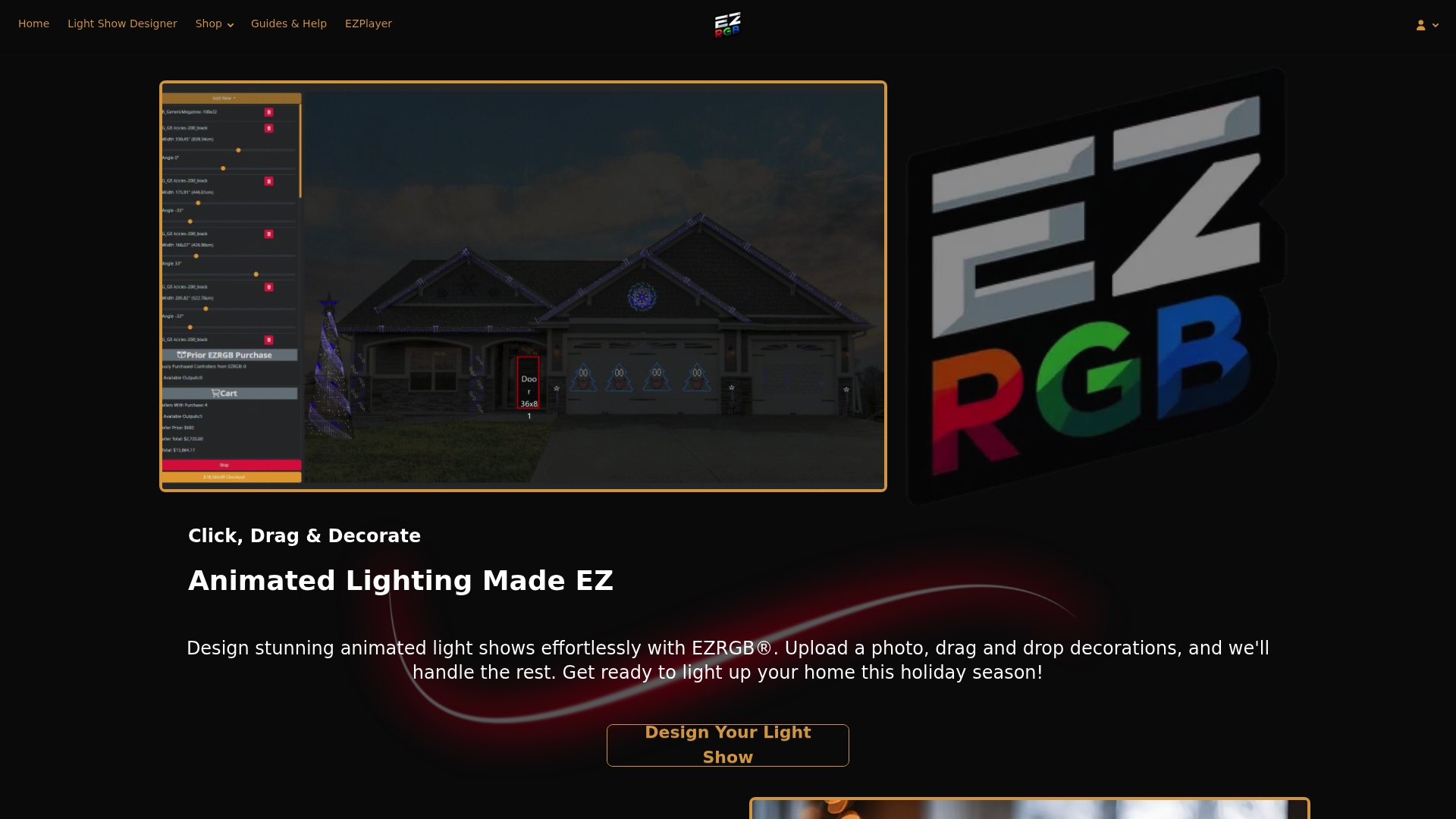
If you’re unsure which kit fits your home, start at EZRGB and use the designer to see what your layout needs.
FAQ
Does a pre-programmed controller mean I don’t have to set anything up?
No. EZPlayer programs the controllers from your layout. You mount the lights, make the connections, sync through the cloud and test the show. EZPlayer guides your prop connections to make that part easier.
Can I add more props later?
Yes. You can add props or lights in the designer at any time. It tracks open ports and flags when another controller is needed, and EZPlayer cloud sync updates the controller configuration.
Do I need internet to use my kit?
The cloud is required for kit downloads, sequences and configuration, and EZPlayer needs Wi-Fi to sync. Controllers themselves connect by Ethernet, since we don’t make wireless controllers.
Are songs included?
Sequences and matching music are sold separately from the kits. You choose them on the sequences page and sync the ones you buy through EZPlayer.
